









Transact Instructions
Transact is Wartburg College’s online billing and payment system and provides students and authorized users with convenient online access to:
- Sign the Student Financial Agreement (SFA)
- View student account billing statements and real-time account activity
- Make electronic payments using credit/debit cards or direct debit (bank account)
- Set up a monthly payment plan
- Enroll in e-refund for direct deposit of refunds
Jump to a Section

How to Access Transact
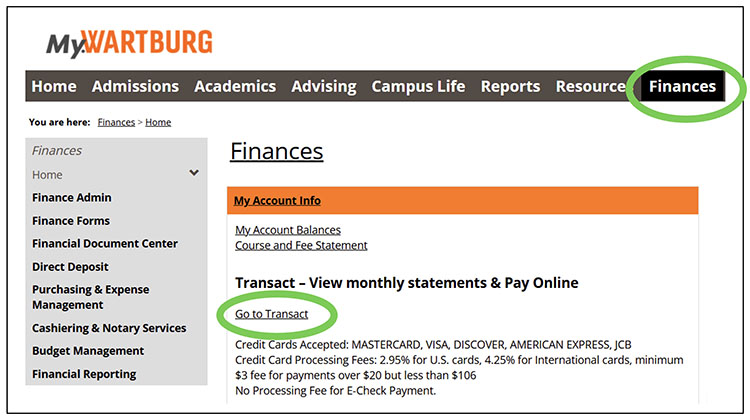
Students can access Transact through the following steps:
- Go to https://my.wartburg.edu/ics
- Select the “Finances” tab.
- Click on the “Go to Transact” link.
To Reset Authorized Payer’s Password
Once an authorized payer’s account is activated on Transact, the student is responsible for resetting a payer’s password.
The Wartburg College Business Office does not have the ability to perform this function.
Multiple Authorized Payers
A student can set up more than one authorized payer. Each authorized payer only has access to their own payment account information.
Signing the Student
Financial Agreement (SFA)
The Student Financial Agreement (SFA) is a required legally-binding agreement between the student and Wartburg College explaining the terms and conditions of the student’s financial responsibilities, including terms of payment, policies related to delinquent and defaulted accounts, communications, and other important terms.
Upon a student’s initial login to Transact, they will be prompted to review and sign the SFA. The College asks that students carefully read the agreement before completing the electronic signature within Transact.
View Billing Statements
& Real-Time Activity
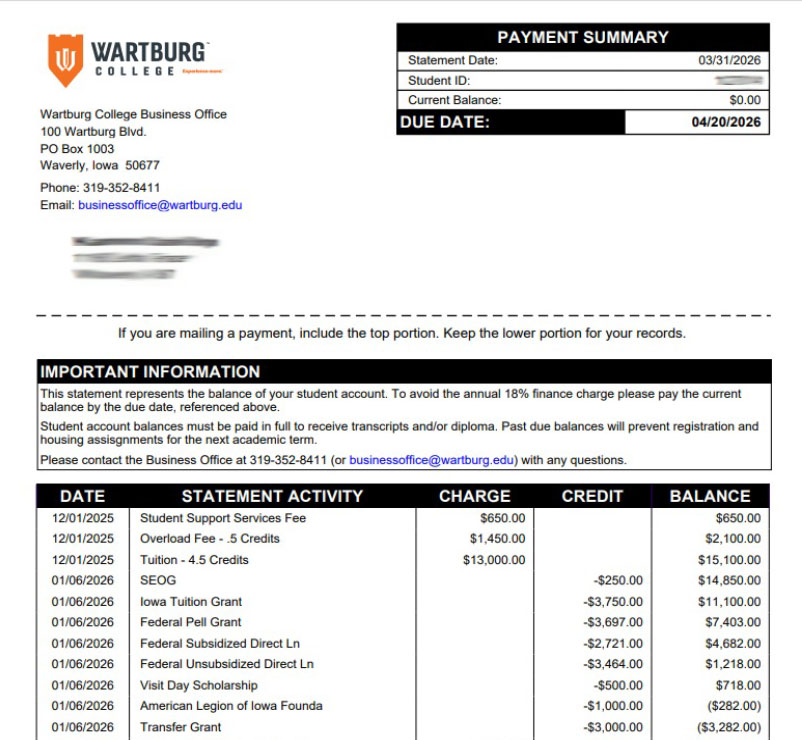
The Transact billing statements are a static, point-in-time bill; it will show all activity that occurred up until the billing date.
- Select the “Statements” tab.
- Select “View or “Save” to access a statement.
NOTE: The Business Office does not provide paper copies of billing statements. However, you can print copies of billing statements from Transact at your convenience.
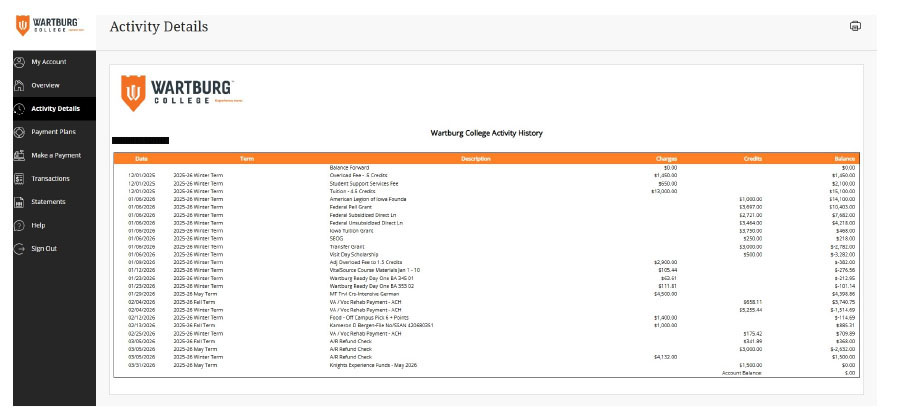
To view real-time account activity, select the “Activity Details” tab.
Account Activity Sample
Making a Payment
Transact allows students and authorized payers to make electronic payments towards their student account balance via credit card, debit card, and direct debit (bank account), and 529 plans.
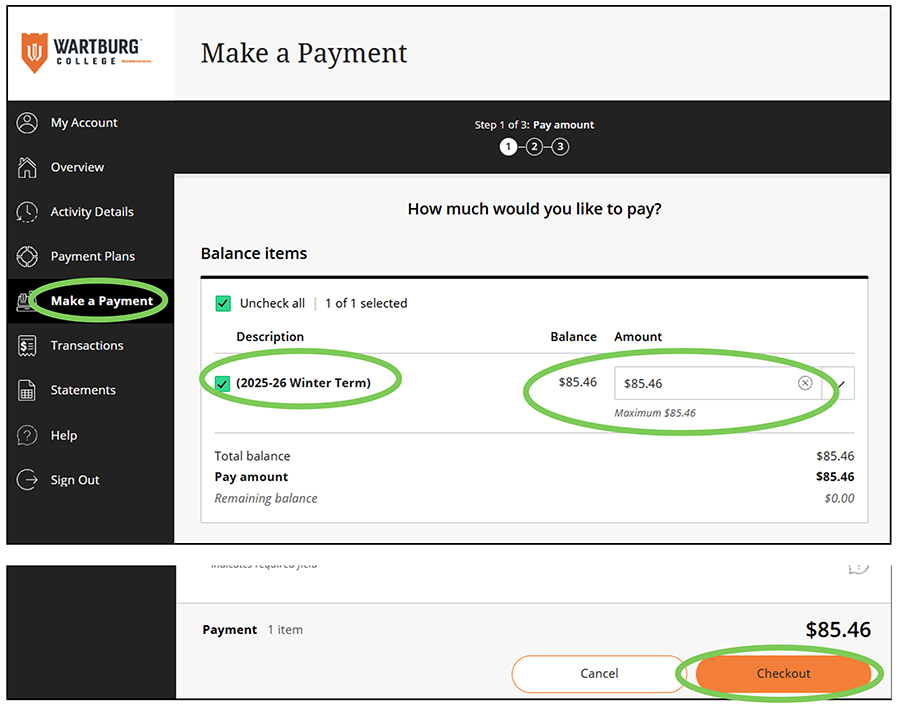
- Select “Make a Payment” tab.
- Enter payment amount if you do not wish to pay in full and select the “Checkout.”
- Select the term(s) you are paying.
- Select a payment method from the drop-down menu.
- Enter account information. Payers may check the “Save for Future Use” box to have their account information retained for future transactions.
- Select “Continue.”
- Review your transaction and account information before selecting “Pay” to complete the payment and receive the payment confirmation.
How to Add an Authorized User
Transact allows students to grant parents or other trusted adults access to view student account billing statements and account activity, make payments, and view payment history.
- Select “My Account” tab.
- Select “Send a payer invitation.”
- Complete the required fields on the Payer Invitation screen.
- Elect whether you wish to allow the payer to access your billing statements. If unchecked, the payer will only be allowed to make a payment.
- Upon selecting “Send Invitation,” an email will be sent to the authorized payer with their username and password.
To Reset Authorized Payer’s Password
Once an authorized payer’s account is activated on Transact, the student is responsible for resetting a payer’s password.
The Wartburg College Business Office does not have the ability to perform this function.
Multiple Authorized Payers
A student can set up more than one authorized payer. Each authorized payer only has access to their own payment account information.
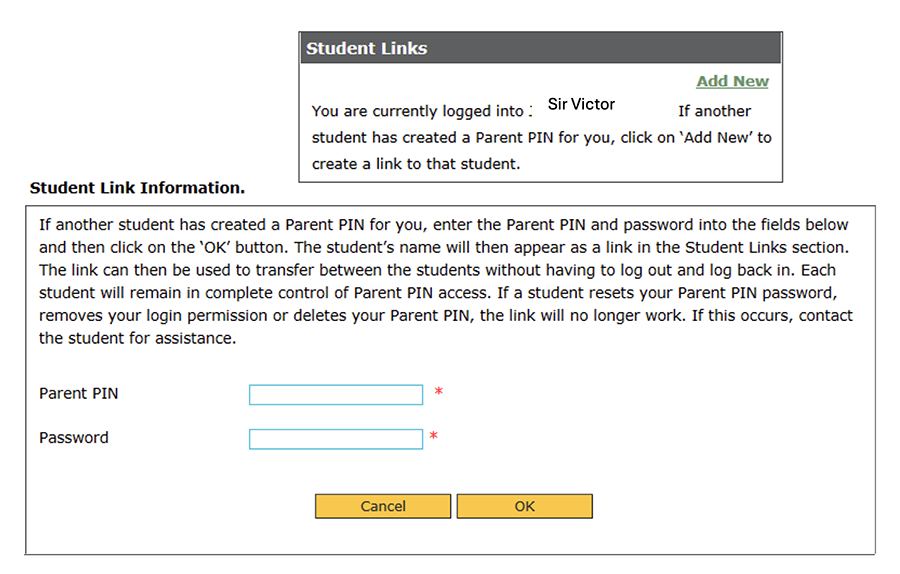
Once a payer has successfully accessed Transact using one of their assigned Parent PIN IDs, they can link additional student accounts to their profile.
The “Student Links” section will appear at the bottom of the screen for authorized payers.
- Click “Add New” to link another student account.
- Enter the login credentials associated with the additional Parent PIN ID.
Temporary login credentials may be used if a new account has been created and the password has not yet been updated.
If the login credentials are entered correctly, a link will be added to the “Student Links” section allowing access to the additional student’s account page.
A corresponding link will also appear on that student’s page, enabling the authorized payer to easily navigate back to the original account.
Authorized payers may add as many student links as needed, depending on the number of Parent PIN IDs issued to them.
Enroll in eRefund
(Direct Deposit Refunds)
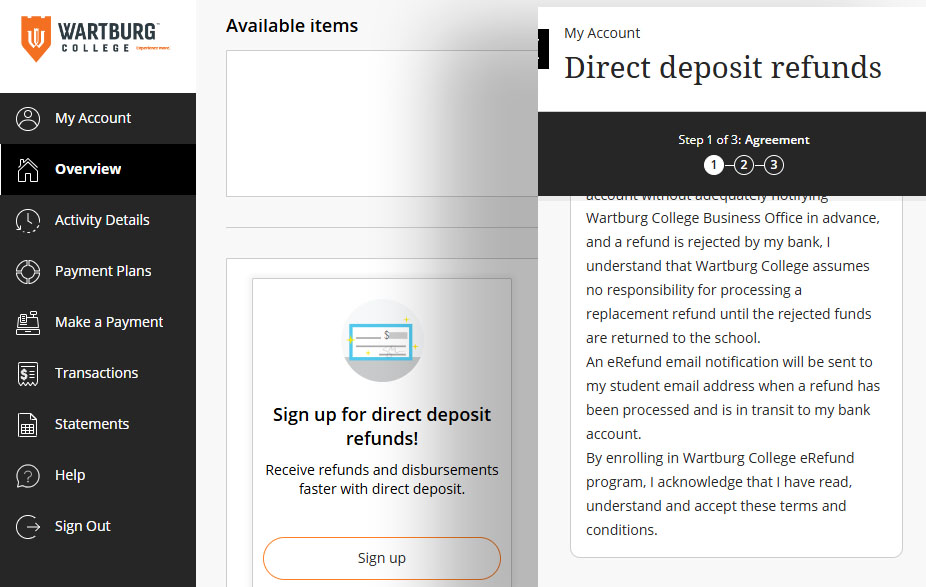
Students have the opportunity to sign up for direct deposit refunds by providing their bank account information.
- On the Overview tab, click the Sign Up link in the eRefund box.
- Follow the prompts to enter the information requested for the bank account that will receive the funds. If a student already has saved bank account information, the student will first be asked if he would like to use that account or enter the information for a new account.
For help navigating the Transact website, reach out to:
Transact Online Support
Monday-Friday, 8 a.m. – 9 p.m.
(800) 339-8131
Student Services